
The Dynamic Grid Lightning Web Component (LWC) provides unparalleled flexibility, allowing admins to configure and select data sources to present data in a visually appealing format. Users can take actions directly from each card. App builders and admins can use this LWC to create robust point-and-click solutions without custom code.
Permissions
Any profiles used to access Dynamic Grids in Member Portal should have access to the correct Apex Classes. Verify the Apex Class Access for and user profiles that access Member Portal including Guest User profiles (Ex: Community Hub Login Profile):
-
Navigate to Setup > Profiles.
-
Select the profile that requires access (e.g., Member Portal User, Guest User).
-
Scroll to the Apex Class Access section and click Edit.
-
Verify/Add the following Apex classes:
-
DynamicGridUi -
DataSourceUi
-
-
Click Save.
-
Repeat these steps for any additional profiles that need access.
Tip: Ensure that the Guest User profile for the Member Portal site also has these classes assigned if the Dynamic Grid LWC will be publicly accessible.
Configuration Procedure
Dynamic Grids are built with a combination of different metadata records:
-
Query: The query specifies the records and fields that the Dynamic Grid will display. It uses SOQL to define the object, fields and where clauses.
-
Datasource: The datasource is connected to a query record and holds the records retrieved.
-
Dynamic Grid Datasource: The Dynamic Grid Datasource specifics the Datasource of records and the HTML to use to display each record that is in the Datasource.
-
Dynamic Grid Configuration: The Dynamic Grid Configuration is the external facing record used in Member Portal in the Dynamic Grid LWC. It links one or more Dynamic Grid Datasources and specified the order that the records in each will be output in the Dynamic Grid. The Dynamic Grid Configuration name is what is selectable in the Dynamic Grid LWC.
Follow these steps to configure a Dynamic Grid for Member Portal:
Step 1: Create Query Records
Setup > Custom Metadata Types > SOQL Query
-
Identify the number of Data Sources you need.
-
For each Data Source, create a Query record:
-
Use Staff View to create SOQL queries.
-
Repeat for additional queries as needed.
-
https://help.nimbleams.com/create-a-soql-query-from-staff-view-287605047.html
-
Use {!CurrentAccountId} in the Where clause of queries to filter for records related to the user who is viewing the Dynamic Grid.
Step 2: Create Data Source Records
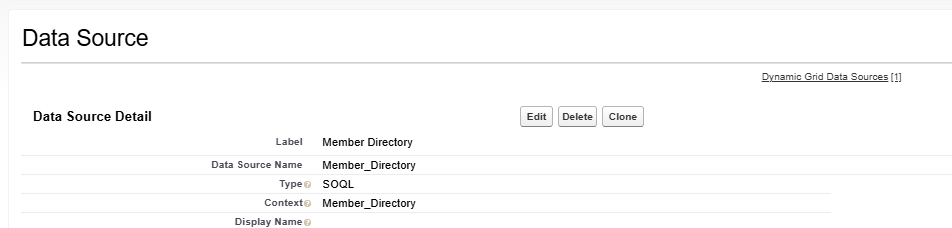
Setup > Custom Metadata Types > Datasource (ensure it has a namz Namespace Prefix)
-
Go to Setup > Custom Metadata Types.
-
Click Manage Records next to Data Source under the namz namespace.
-
-
Click New and provide:
-
Label and Data Source Name.
-
Select Type:
-
SOQL for query-based sources.
-
Apex for Apex-based sources.
-
-
Context:
-
For SOQL: Enter the API name of the Queries record (e.g.,
namz__MerchandiseProducts). -
For Apex: Enter the Apex class name implementing
IApexDataSourceExecutor(must be global).
-
-
-
Click Save.

Step 3: Create a Dynamic Grid Configuration Record
-
Go to Custom Metadata Types.
-
Click Manage Records next to Dynamic Grid Configuration.
-
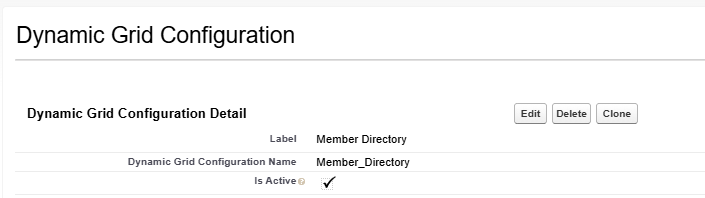
Click New and provide:
-
Label and Name.
-
Select Is Active.
-
-
Click Save.
Step 4: Create a Dynamic Grid Data Source Records
-
Go to Custom Metadata Types.
-
Click Manage Records next to Dynamic Grid Data Source.
-
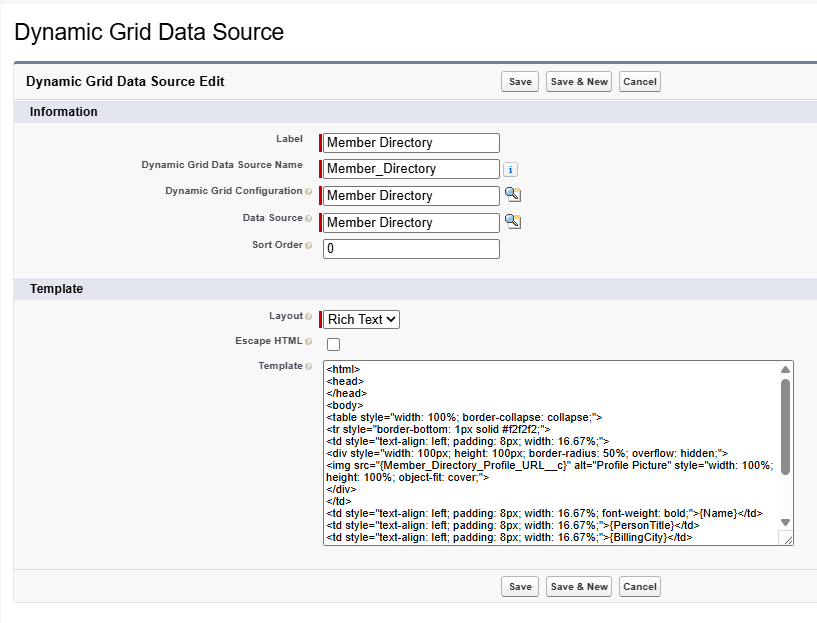
Click New and provide:
-
Label and Name.
-
Link to the Dynamic Grid Configuration record.
-
Link to the Data Source record.
-
Sort Order (for multiple sources).
-
Layout: Choose Rich Text for card layout.
-
Check Escape HTML (recommended for security).
-
Enter HTML in Template to define the layout of the records displayed.
-
-
Click Save.
-
Repeat for additional data sources.
Important
The HTML can access the filed from your datasource by referencing the API name in {}'s. For example, the display the description of a product, use {NU__Descrption__c}.
-
You can only use fields that are also in your datasource, so please ensure that they are list in the Select portion of your query record.
Step 5: Add Dynamic Grid LWC to Member Portal
-
Open Experience Builder.
-
Drag the Dynamic Grid component onto the desired page.
-
Configure component properties to reference your metadata records.
Important Information
-
Data loads in parallel based on batch size (rows × columns).
-
Use
{!CurrentAccountId}in Queries for user-specific data (e.g., My Orders).
Troubleshooting
-
If no Data Sources are linked, you’ll see:
“The Dynamic Grid Configuration does not have a data source linked to it. Please check your configuration.” -
If Context is invalid, you’ll see:
“The value in the Context field of the Data Source CMT is not valid. Please check your configuration.” -
Misconfigured Search or Filter metadata will also display error messages.