
The pro forma–based Bulk Billing capability allows staff to generate and manage high-volume membership billing using pro forma orders. It is designed to support organizations that need to bill many members at once, including complex renewal scenarios, while leveraging the new Member Portal for self-service payment and review.
This guide explains how to enable, configure, and use Bulk Billing for memberships and related subscriptions.
Key characteristics of Bulk Billing:
-
Optimized for high-volume membership renewals and recurring billing scenarios.
-
Fully compatible with the new Member Portal, enabling members to review and pay pro forma bills online.
-
Configurable selection criteria.
Who This Is For
Use this guide if you are involved in setting up or running renewal billing at scale. Typical audiences include:
-
Association staff responsible for membership renewals and billing operations.
-
System administrators configuring Nimble AMS billing features
You should already be comfortable with basic Nimble AMS concepts such as Accounts, Memberships, Orders, Products, and the Member Portal.
Key Concepts
Pro Forma Orders
A pro forma order represents a proposed bill that is not yet finalized or posted. In the Bulk Billing flow:
-
Billing runs generate orders for accounts, based on membership and subscription data.
-
Pro forma orders can be reviewed and approved by staff before being finalized.
-
Once confirmed, pro forma orders can be converted to live orders or invoices for payment processing.
Using pro forma orders reduces risk by allowing validation and clean-up before charges are posted and communicated to members.
Billing History
A Billing History is the result of an individual run of the Bulk Billing functionality. It captures the information about the run, including:
-
The Billing Type (Membership or Subscription)
-
The Accounting Method used (Cash or Accrual)
-
Cash = a Pro forma order with no AR will be generated
-
Accrual = a Processed Order with AR
-
-
The number of bills generated and the total amount billed
-
The number of renewals that were skipped and the reasons
-
The number of renewals that were failed and the reasons
-
The list of orders generated
Member Portal Integration
Bulk Billing is designed to work with the new Member Portal so that members can:
-
View their current and upcoming pro forma bills created by Bulk Billing.
-
Pay orders online using configured payment methods.
Prerequisites
Before enabling and using Bulk Billing, ensure the following prerequisites are met.
Data Readiness
-
Membership records are up to date, including start and end dates, status, and related account data.
-
Subscription or add-on records (if used) are clearly associated with memberships or accounts to support accurate billing.
-
Duplicate or inactive records have been reviewed to avoid unwanted billing in bulk cycles.
Update Page Layouts
-
Update the Billing History page layout for the Billing History objects to include the following fields under the Other Fields section:
-
Accounting Method
-
Number Billed
-
Total Billed
-
Total Skipped
-
Skipped Reasons
-
Shown In Member Portal
-
Number Paid
-
Record Type
-
Total Paid
-
Total Failed
-
Failure Reasons
-
Last Renewal Email Sent Date
-
-
Add the above-mentioned fields the Other Fields section of the Billing History page layout.
-
Go to Setup → Object Manager and locate the object.
-
In the Custom Objects list, click Billing History.
-
In the "Page Layouts" list, click Edit next to " Billing History ".
-
Add above-mentioned fields below Other Fields section.
-
Click Save.
-
-
Add Billing History lookup field to the Order Item page layouts.
-
Go to Setup → Object Manager and locate the object.
-
In the Custom Objects list, click Order Item.
-
In the "Page Layouts" list, click Edit next to "Order Item".
-
Add Billing History lookup field.
-
Click Save.
-
-
Add Exclude from Billing checkbox field to the Subscription page layouts.
-
Go to Setup → Object Manager and locate the object.
-
In the Custom Objects list, click Subscription.
-
In the "Page Layouts" list, click Edit next to "Subscription".
-
Add Exclude from Billing checkbox field.
-
Click Save.
-
Member Portal Configuration
-
The new Member Portal is enabled and configured for your organization.
Email Templates and Notifications
To support smooth communication around Bulk Billing, confirm that:
-
Email templates for billing notifications and reminders reference pro forma orders and Member Portal links appropriately.
-
Note: Bulk Billing is provided with new, updated email templates that reference orders correctly. This step is only necessary if you are using a custom solution.
-
Nimble AMS Membership Renewal Invoice -
Nimble AMS Subscription Renewal Invoice -
Learn more about how to view, manage and update Nimble Create Templates here: https://help.nimbleams.com/help/live/nimble-create
-
-
Automations or flows triggered by the creation of an order are aligned with the Bulk Billing process (for example, updating a record when an order is generated).
Enablement
-
Add the “Generate Renewals” button to the list views for Membership and Subscription
-
Go to Setup
-
Navigate to:
-
Object Manager
-
-
Open your object:
-
Membership (
NU__Membership__c) -
Repeat later for Subscription (
NU__Subscription__c)
-
-
Click on “List View Button Layout”
-
Select “Edit” from the dropdown
-
Under Custom Buttons, move “Generate Renewals” from Available Buttons to Selected Buttons
-
Click Save
-
-
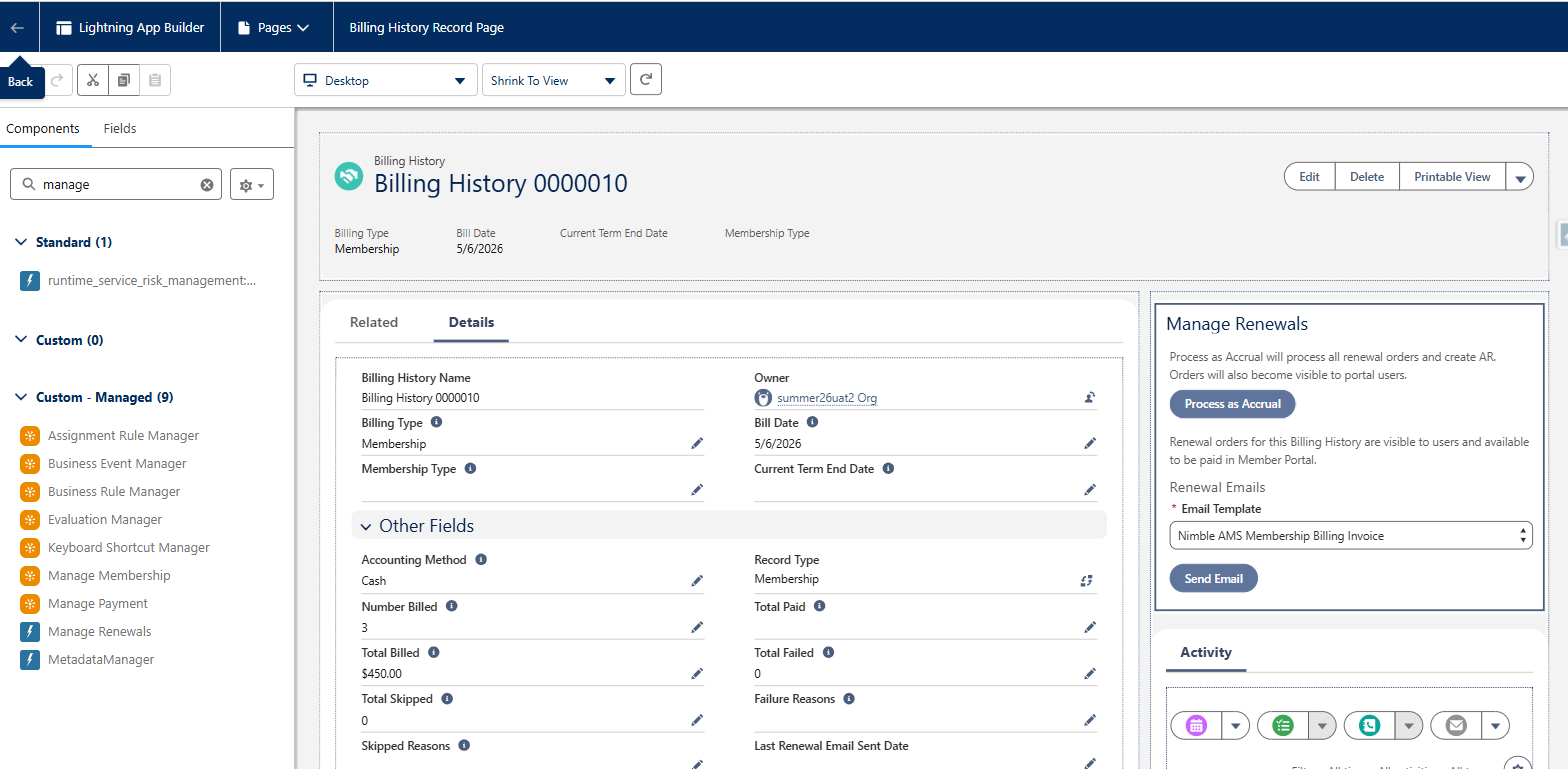
Add the “Manage Renewals” LWC on to the Billing History page
-
Go to any Billing History record
-
Click the ⚙️ gear icon (top right)
-
Select Edit Page
-
In the left panel, find:
-
Custom Components
-
-
Locate:
-
Manage Renewals
-
-
Drag Manage Renewals onto the page, placing it in the upper right column
-
Click Save
-
Click Activate (if not already active)
-
Assign it:
-
Org Default
-
App Default
-
Or specific profiles
-
-
-
How Bulk Billing Works
Bulk Billing evaluates a defined list of memberships or subscriptions and generates orders for each eligible record that meets the configured criteria. These orders can then be reviewed in bulk, adjusted individually, and communicated to members via email and the Member Portal.
Bulk Billing Configuration (NAMS Settings)
All configuration for Bulk Billing (Bulk Renewals) is centralized in the NAMS Settings tab, providing admins with a single location to manage system behavior.
-
From the App Launcher, search for and select
NAMS Settings. -
Navigate to the Bulk Renewal Settings section. Bulk Billing leverages this configuration.
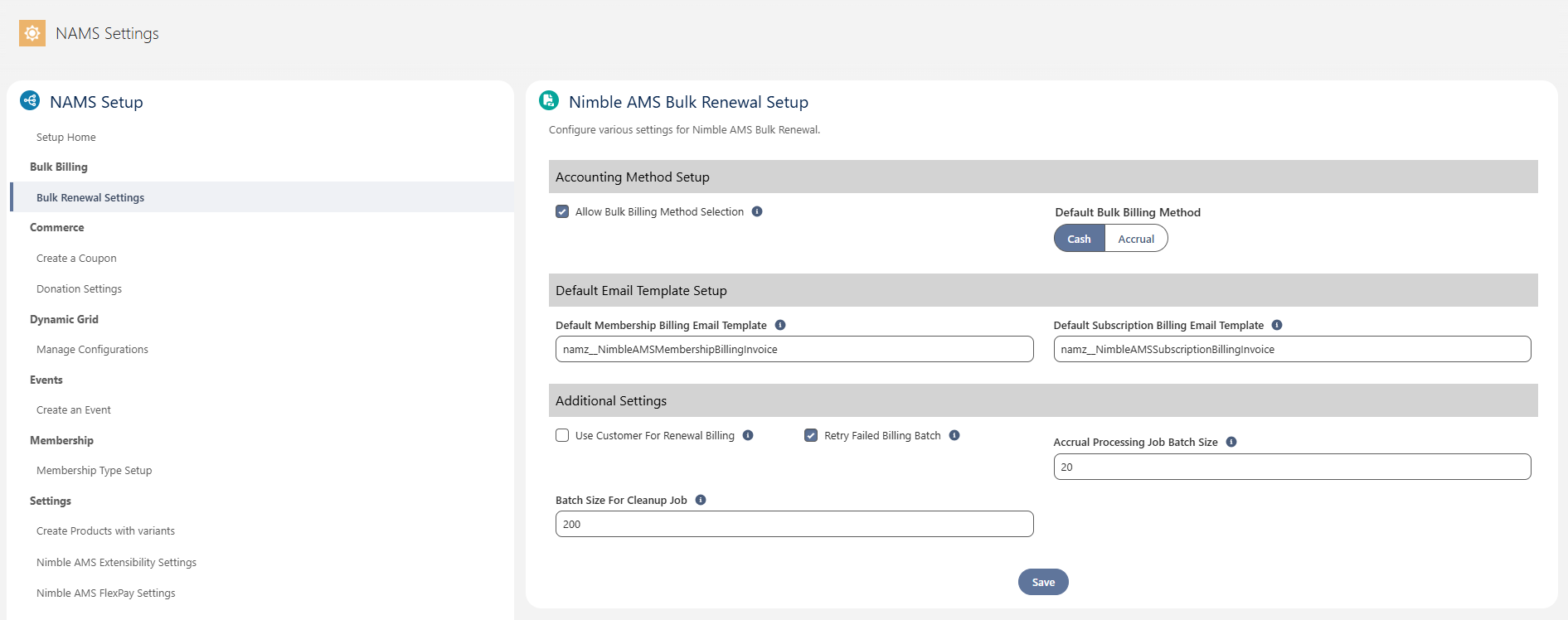
Verify/Configure the following:
-
Allow Billing Method Selection
-
Check this box to allow users the option to
-
“Process as Accrual” after the Bulk Billing process completes. Selecting “Process as Accrual” will convert the generated Pro forma orders to Processed and generate AR.
-
Expose the generated orders in Member Portal buy selecting “Show Orders in Portal”
-
-
If left unchecked, staff will only have the option specified by Default Bulk Billing Method (below)
-
-
Default Bulk Billing Method
-
Only used if “Allow Billing Method Selection” is unchecked
-
Cash - Users will only have the option to expose the generated orders in Member Portal.
-
Accrual - Users will only have the option to "Process as Accrual," which also exposes the orders in Member Portal after the order is processed
-
-
-
Default Membership Billing Email Template
-
Enter the API Name of the email template to use for membership renewal notifications.
-
This template is used by default when “Send Email” is selected during the billing process for Membership products.
-
-
Default Subscription Billing Email Template
-
Enter the API Name of the email template to use for subscription renewal notifications.
-
This template is used by default when “Send Email” is selected during the billing process for Subscription products.
-
-
Use Customer For Renewal Billing
-
If checked, the system uses the customer associated with the membership (the Account on the Membership record) as the Bill To on the renewal order.
-
If unchecked (default), the system uses the original Bill To from the previous order.
-
Membership-Specific Setup
Bulk Billing for memberships relies heavily on Membership Types and Membership Type Product Links (MTPLs).
MTPL–Based Product Inclusion Rules
-
Membership records are linked to Membership Types via MTPLs.
-
When a renewal is generated via Bulk Billing:
-
Primary MTPLs
-
Always included in the renewal order.
-
-
Required MTPLs
-
Always included in the renewal order.
-
-
Optional MTPLs
-
Included unless the
Exclude From Billingcheckbox is selected on the MTPL record.
-
-
Donation MTPLs
-
Always excluded from Bulk Billing.
-
-
For imported membership records (no historical orders):
-
If the Membership Type is set up with a Required MTPL for renewal, the renewal will include:
-
The primary product
-
All required MTPL products
-
Transition To (Memberships)
The Transition To capability allows memberships to automatically move from one Membership Type to another at renewal time, with Bulk Billing respecting those transitions.
-
Availability
-
Supported out of the box; no extra setup required in
NAMS Settings.
-
-
Configuration
-
On the MTPL, populate the
Transition Tofield with the MTPL of the target Membership Type.
-
-
Behavior in Bulk Billing
-
During Bulk Billing, if
Transition Tois populated:-
Renewal products are fetched from the MTPL defined in
Transition Torather than from the current type’s Renew stage MTPL.
-
-
Transition patterns:
-
Immediate Transition
-
If
Transition Tois defined on a Join stage MTPL, the next renewal immediately uses products from theTransition ToMTPL.
-
-
Deferred Transition
-
If
Transition Tois defined on a Renew stage MTPL, the current renewal uses the existing type’s Renew products, but subsequent renewals use theTransition ToMTPL.
-
-
-
Product inclusion rules under Transition To:
-
Primary products
-
Always included if present on the Transition To Membership Type.
-
-
Required products
-
Always included if present on the Transition To Membership Type (independent of what the member had before).
-
-
Optional products
-
Included if:
-
The member previously had that same optional product and
-
It also exists on the Transition To Membership Type; or
-
The optional MTPL itself has its own Transition To defined (e.g., CA Chapter Dues → NY Chapter Dues).
-
-
Not included if the member never had the optional product.
-
-
Donation products
-
Always excluded.
-
-
-
Subscription-Specific Setup
For subscriptions, Bulk Billing works directly from Subscription records and their associated products.
-
Subscription renewals are product-based and do not use MTPLs.
-
Inclusion logic is simpler:
-
Subscription records marked
Exclude From Billingare not included in the billing run.
-
-
A dedicated Subscription Invoice Email Template can be set in
NAMS Settingsand is used when sending billing emails for subscription runs.
How Bulk Billing Works
Bulk Billing evaluates a defined list of Memberships or Subscriptions and generates pro forma orders for each eligible record that meets your configured criteria.
High-level flow:
-
Staff define which records should be billed (via list views on Membership or Subscription).
-
Staff initiate a Bulk Billing run, specifying:
-
Billing Type (Membership / Subscription)
-
Accounting Method (Cash / Accrual) — if allowed
-
Email template and whether to send emails during the run
-
-
The system:
-
Analyzes each record for eligibility (status, Exclude From Billing, Renewal Order already present, etc.)
-
Creates pro forma orders for eligible records
-
Creates a Billing History record summarizing the run
-
Staff can then:
-
Review and adjust individual orders.
-
Expose orders in the Member Portal.
-
Send invoice/renewal emails either during the run or afterward from Billing History.
Step-by-Step: Running a Bulk Billing Cycle
Use the following steps to plan, configure, and execute a Bulk Billing run.
1. Plan the Billing Cycle
-
Which membership terms or date ranges are in scope for this cycle.
-
Which member segments or membership types should be billed together or separately.
2. Define the Bulk Billing Record Criteria
Bulk Billing uses the associated list view to determine what records to run billing on. Staff can use the list view to filter on any criteria available. Once the list contains the set of Memberships or Subscriptions to run billing on, Staff can choose individual records by selecting them in the list, or can not select any records which will cause Bulk Billing to run based on the filter criteria, using all the records.
-
Navigate to the relevant object:
-
Membership (for membership billing) or
-
Subscription (for subscription billing).
-
-
Create or select a list view that filters down to the records you want to bill:
-
Example filters:
-
Membership Status = Active
-
End Date within the next 60 days
-
Exclude From Billing = False
-
-
-
Once the list contains the correct set of records:
-
You may either:
-
Select specific rows and run billing only for those, or
-
Select none, in which case Bulk Billing runs against all records matching the list view filter criteria.
-
-
3. Billing Run
Once the records to be billed have been defined, execute the billing run.
-
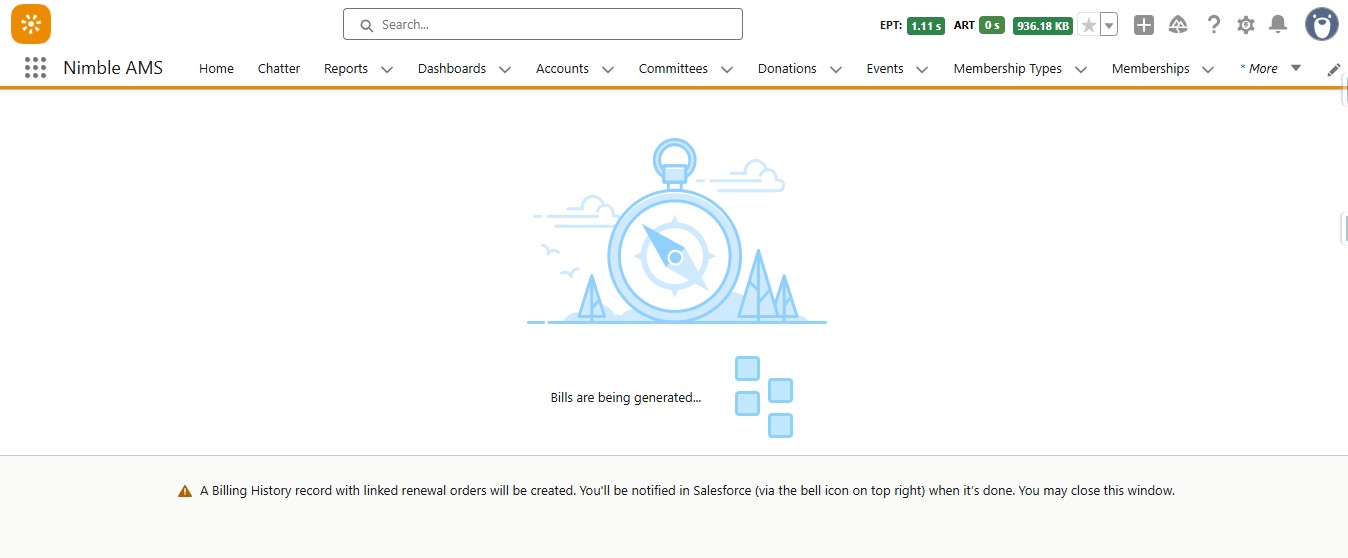
Click “Generate Bills”
-
Click “Run”
-
When the billing generation is complete, you will receive a notification. Click the notification to open the generated Billing History record
-
5. Review and Adjust Orders
After the Billing finishes, a set of orders are available for review and adjustment prior to communication or conversion to live orders.
-
Open the Billing History record to:
-
Review counts of generated, skipped, and failed renewals.
-
Drill into specific orders and accounts.
-
-
Adjust individual orders if necessary:
-
Add/remove products
-
Correct pricing or tax-exempt flags
-
Fix Account / Bill To data, where appropriate
-
6. Finalize and Communicate
Once orders have been reviewed and updated as needed, you can make them visible in Member Portal on the My Orders page, or send an email communication.
-
Click “Show Orders in Portal” to make the orders visible on the My Orders page
-
Click “Sent Email” to send an email notification using the selected Email Template so members know that a new bill is ready for review and payment.
Important Considerations and Limitations
Keep the following in mind when planning and executing Bulk Billing cycles:
-
Taxes and Shipping
-
Taxes and shipping fees are not calculated during the bulk billing process.
-
They are applied separately at checkout when the member pays in the Member Portal (or during staff-side processing).
-
-
Preview Orders / Pro Forma Visibility
-
Pro forma orders generated in preview are marked Hidden From Member Portal until:
-
Staff choose to make them visible (e.g., Show Orders in Portal), or
-
They are otherwise published/processed per your org’s configuration.
-
-
-
Skipped Renewals
-
A Membership record will be skipped during a bulk billing run if:
-
The
Renewal Orderfield is already populated (renewal already generated), or -
The
Exclude From Billingcheckbox is selected on the Membership (or Subscription, for subscription billing).
-
-
-
Expired Records
-
Expired memberships/subscriptions are included in the billing run unless they are filtered out using the list view criteria.
-
Use list views to explicitly exclude expired or otherwise out-of-scope records.
-
-
Deletion of Billing History
-
Billing History records can only be deleted if all linked renewal orders remain in Pro Forma state.
-
Deleting a Billing History also deletes all linked renewal orders.
-
Once any order has been published or processed:
-
Deletion of that Billing History is not permitted.
-
-
-
Membership Product Inclusion
-
Bulk Billing always considers Primary and Required membership products.
-
Optional membership products are included unless
Exclude From Billingis selected on the MTPL. -
Donation products are never included in Bulk Billing.
-
-
Handling of Imported Records
-
For imported memberships without existing Orders or Order Items:
-
If the Membership Type is set up with a Required MTPL for renewal, the renewal will:
-
Include the primary product and
-
All required MTPL products.
-
-
-
-
Transition To (Memberships)
-
Bulk Billing respects Transition To defined on MTPLs.
-
If configured, renewals pull products from the Transition To MTPL, following the rules in the Transition To section above.
-