
Overview
This guide outlines the steps to enable and configure Product Bundles - Combo within Nimble AMS. It is intended for services teams implementing the feature for clients using the Member Portal.
Product Bundles are only available in Member Portal with the Dynamic Store.
Prerequisites
Activate the Bundle Record Types for
-
NU__Product__c
-
NU__ProductLink__c
Permissions:
All Staff Users need to have access to:
-
sObject NU__Product__c - Record Type: Bundle
-
sObject NU__ProductLink__c - Record Type: Bundle
Entity Order Item
Create an Entity Order Item record to link Bundle type products to the appropriate Entities
Update the Account Page Layout to add the Bundles Related List
-
Select Setup.
-
In the Quick Find box, type Object Manager and click Object Manager.
-
Search for and select Account.
-
In the left-hand menu, click Page Layouts.
-
Open the page layout that for your Staff Users (e.g.,
Account Layout) -
In the page layout editor, go to the Related Lists palette (usually at the bottom of the list).
-
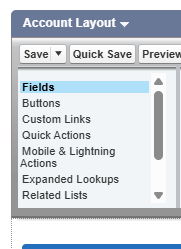
-
From the Fields/List section, locate Bundles and drag it onto the page layout
-
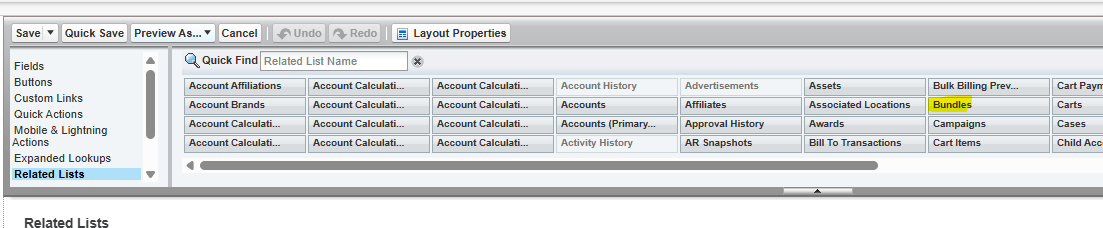
-
Save
How Do Combo Bundles Work?
Combo Bundles are presented and processed as a parent-child hierarchy across the shopping experience:
-
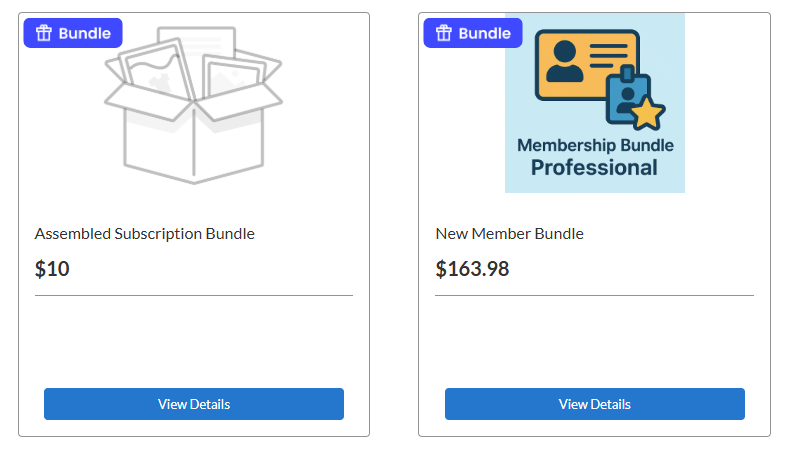
Dynamic Store: Product Bundles are displayed a new Product Type, including a pill icon to designate them:

-
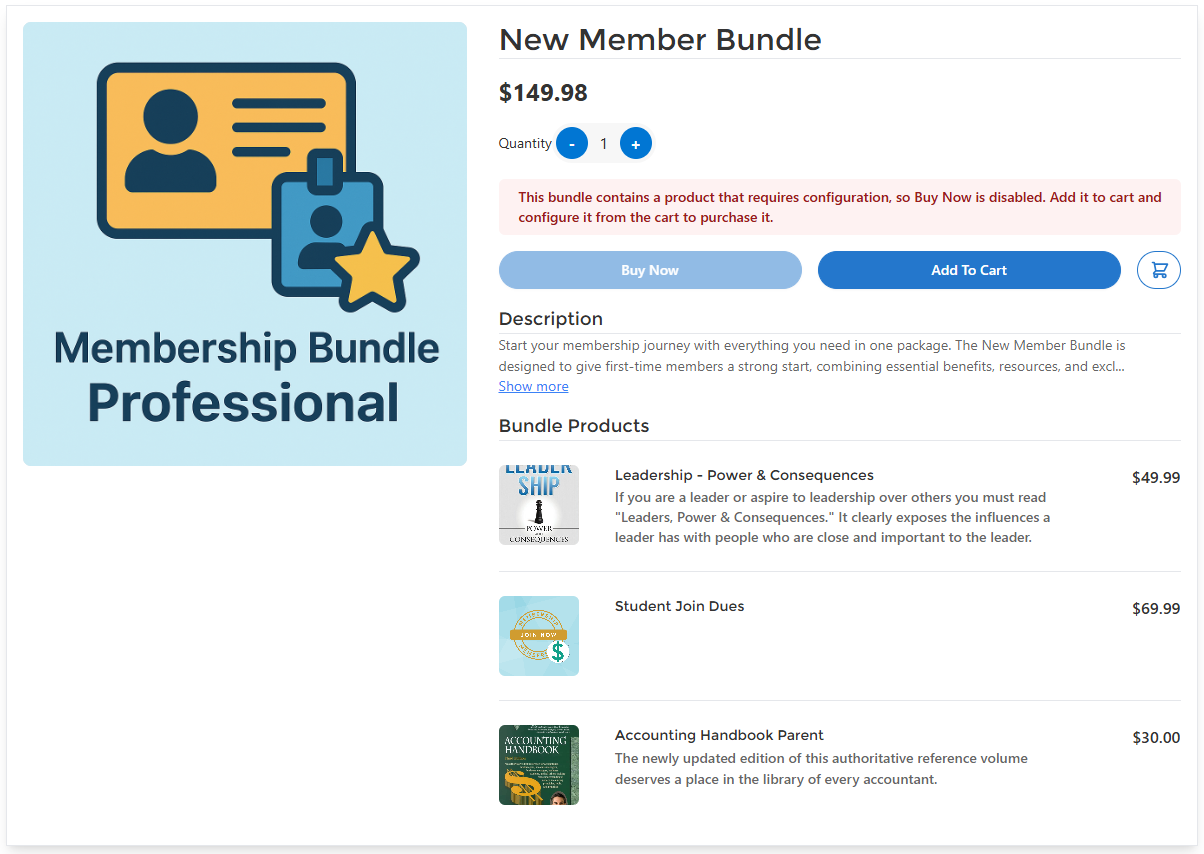
Product Item Details (LWC): Product Bundles will be displayed as a main “Parent” product with “Children” (the bundled products) listed below in a table. Images, Names and Prices (if configured based on Bundle Subtype) will be displayed
-
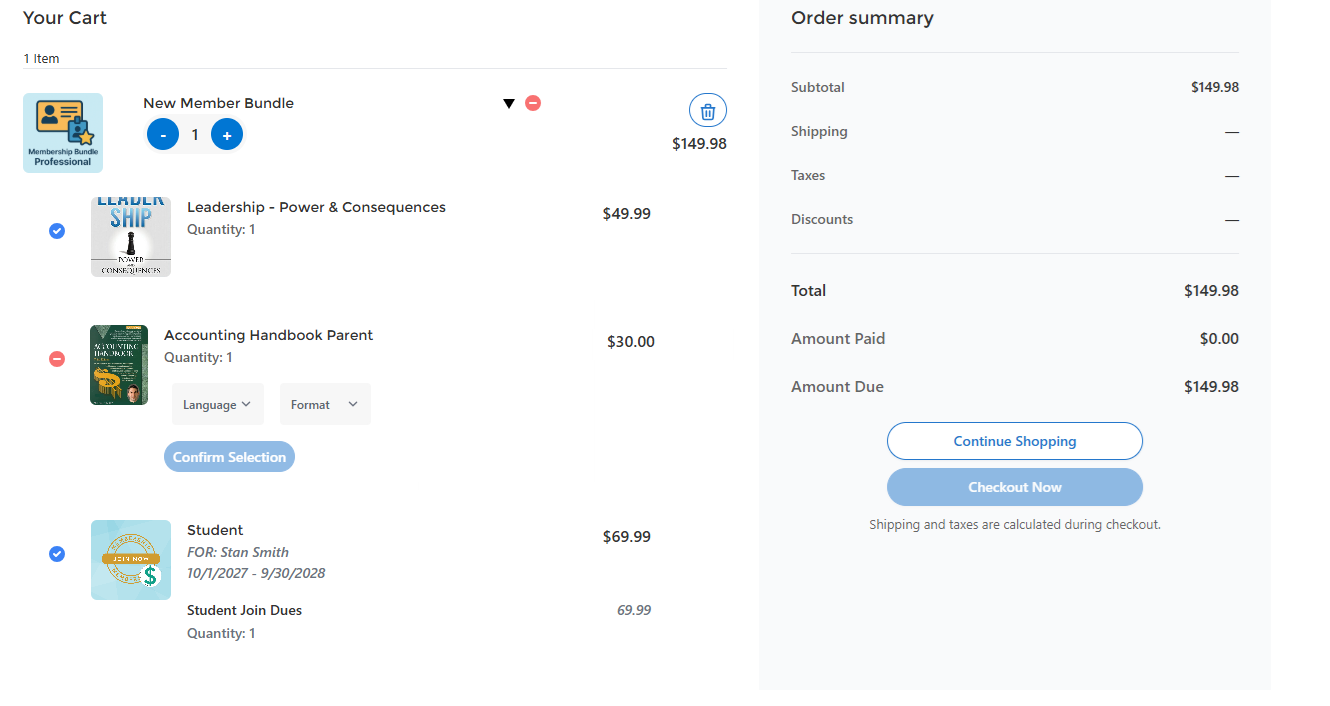
Shopping Cart & Checkout: Bundled items are displayed hierarchically. Configuration-required products (e.g., size selection for a T-shirt) are flagged, and checkout is blocked until all configurations are complete
-
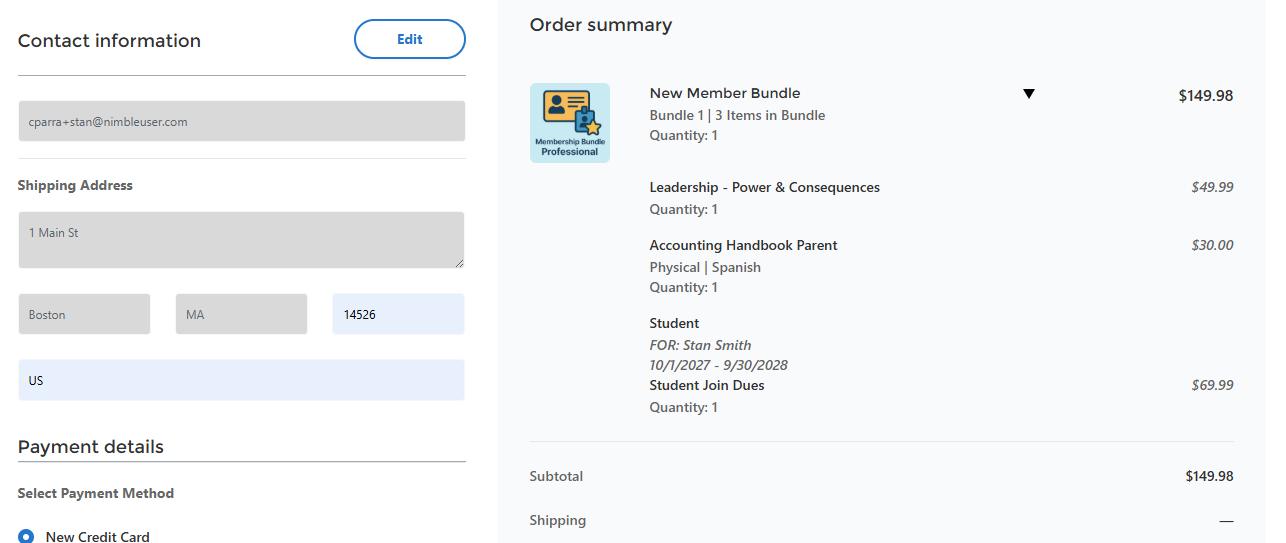
Order Confirmation & My Orders: The bundle structure is preserved, showing both parent and child items. Bundles can be collapsed for easier viewing.
-
Pricing & Taxation (Based on Subtype)
-
Assembled Bundles: Priced, taxed, and shipped at the parent level. Only the Parent Bundle product will be used for calculations. Children are treated as $0 line items when processed.
-
Unassembled Bundles: Priced, taxed, and shipped at the child level. Only the Children “Bundled” products will be used for calculations. The parent Bundle product is treated as a $0 line item when processed.
-
-
Discounts:
-
Assembled Bundles will support Special Prices and Discounts automatically if they are configured.
-
Unassembled Bundles will not support Special Prices and Discounts by default. The children products of the Bundle will need to be marked individually
-
From the Product Link that connects the product to the Bundle, select:
-
Allow Discounts if you want to allow coupons to be applied against this bundled product
-
Allow Special Price if you want to allow Special Prices to be applied against this bundled product.
-
Note, a Special Price can result in the product being priced higher than the bundled price depending on configuration.
-
-
-
-
Data Structure
Combo Bundles are built using a structured data model:
-
Parent Product: Represents the bundle as a whole. This is the main product displayed in the Dynamic Store or in the Order Processor
-
Child Products: Linked via
ProductLinkrecords with attributes like quantity, price override, and GL Account. -
Bundle Subtype: Specifies financial handling (Assembled vs. Unassembled).
-
Wizard Setup: Staff can use the Bundle Wizard to easily add products to a bundle with specified quantities and discounted prices, and define main bundle properties, including name, GL codes, and price.
Data Processing
Triggers are responsible for the addition of bundled products into a cart/proforma order. When a parent Bundle product is added. triggers active and will add all the linked children products to an order as specified in the Product Link (Price, Quantity, GL Account), depending on the Bundle Sub Type. For products that have logic to determine the start or end dates, the default order processor logic is used. The end result should mimic a process where a Staff User selects the individual products and adds them 1 by 1, overriding the quantities and prices.
Examples
Example 1
-
Name: Membership Bundle
-
Type: Combo Bundle
-
Subtype: Unassembled
-
Children (Specified by Product Link(s))
-
Annual Membership (Membership Product)
-
List Price: $100
-
Bundle Link Price: $50
-
-
Accounting Handbook (Merchandise Product)
-
List Price: $50
-
Bundle Link Price: $0
-
Quantity: 2
-
-
ISEN 2026 Full Pass (Registration Product)
-
List Price: $300
-
Bundle Link Price: $150
-
-
Adding Products Individually
Total Order Price: $500
Adding Products as a Bundle
Total Order Price: $200
Example 2
-
Name: Membership Bundle
-
Type: Combo Bundle
-
Subtype: Assembled
-
List Price: $200
-
Children (Specified by Product Link(s))
-
Annual Membership (Membership Product)
-
List Price: $100
-
Bundle Link Price: $100
-
Processed Price: $0
-
-
Accounting Handbook (Merchandise Product)
-
List Price: $50
-
Bundle Link Price: $50
-
Processed Price: $0
-
Quantity: 2
-
-
ISEN 2026 Full Pass (Registration Product)
-
List Price: $300
-
Bundle Link Price: $300
-
Processed Price: $0
-
-
Adding Products Individually
Total Order Price: $500
Adding Products as a Bundle
Total Order Price: $200
How to Use Combo Bundles
For Staff:
-
Use the Combo Bundle Wizard to create and update bundles.
-
The Bundle Wizard creates Product Link records
-
-
Specify the bundle subtype, price, and any products to be included.
-
The Wizard will assist with calculating discounted prices based on the criteria set (ie: Type: Percentage, Amount: 50 would add a product(s) with a 50% discount of the List Price)
-
-
Only supported product types should be included.
-
Event Registration products are only supported for Express Registrations unless you are using the Member Portal Event Registration process, which supports non-express events.
-
Bundle Wizard
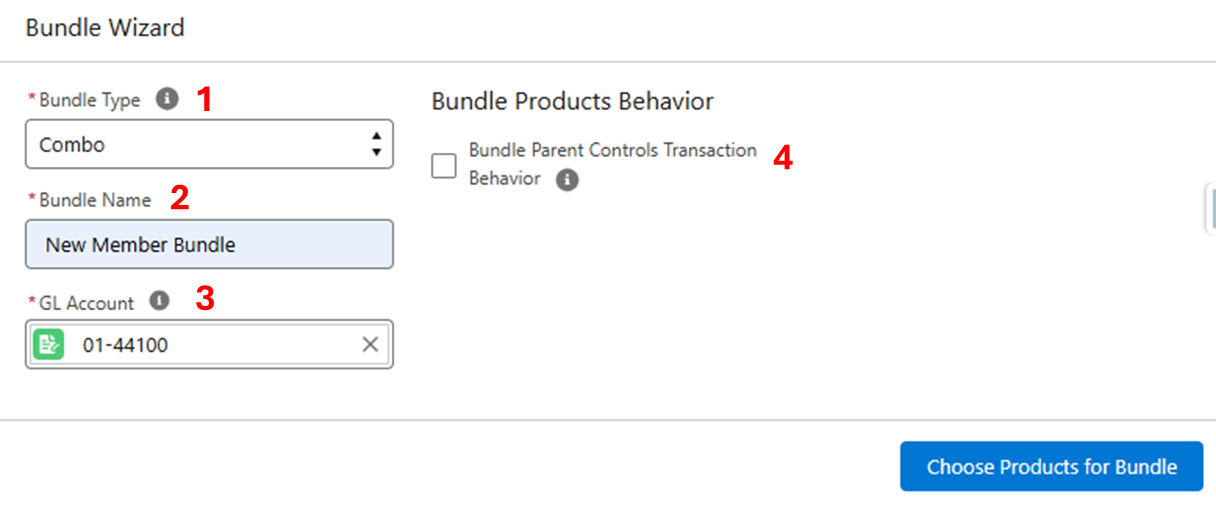
-
This is the Type of Bundle to create. Note: Only “Combo” bundles are currently supported
-
This is the name of the Bundle that will be created
-
All products require a GL account. If the Bundle is Unassembled, this value will be ignored for transactions
-
This setting controls if a Bundle is created as Assembled or Unassembled
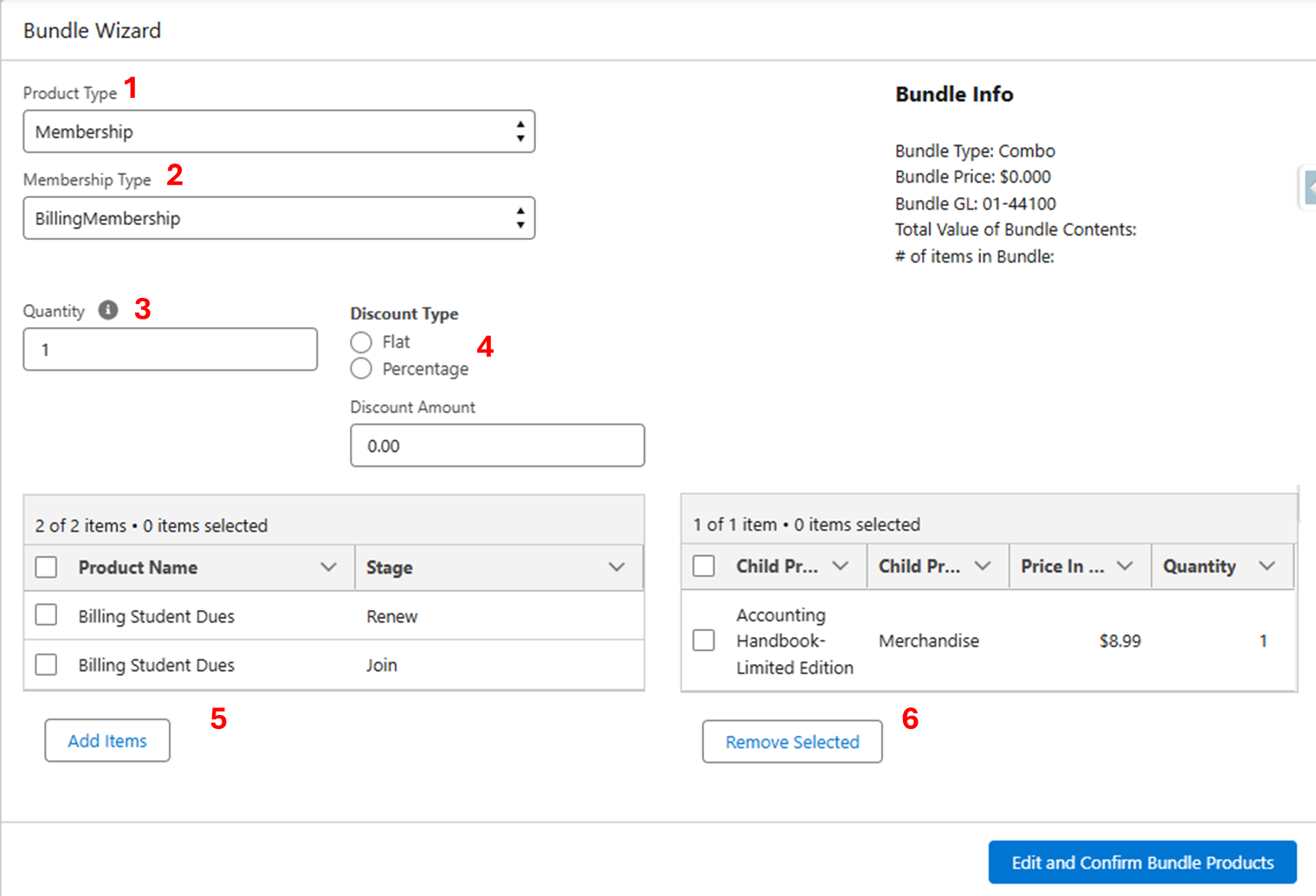
-
A filter for the Product type to add to the Bundle. This controls what will be shown in Table #5
-
A dynamic filter for certain Product types, such as Events or Membership Types. This controls what will be shown in Table #5
-
An optional quantity to apply when adding the product(s) to the Bundle.
-
An optional discount to apply when adding the product(s) to the Bundle. Rhoose the Type (Percentage or Flat) and the amount to apply. This will use the products list price and the discount to determine the final price of the product in the Bundle.
-
Add Item. Any products selected in the table will be added when the user click “Add Items”.
-
This table displays the products in the Bundle, along with their product type, price and quantity
For Members:
-
View bundles in the Member Portal Dynamic Store. Viewing the Details will show the children and any discounted prices.
-
Add to Cart and then configure required products before checkout.
-
Pay via Member Portal Checkout
Bundle Settings
Bundles Products and the associated Product Link records have several fields that control the behavior of the Bundles
Product
-
Bundle Type: This is the Type of bundle (ie: Combo, Buy One, Mix and Match, etc). At this time, only Combo is supported.
-
Bundle Subtype: This controls how a Bundle's children are processed - either as a single unit, or individually.
-
Allow Proration: If selected, then Membership products will be prorated
-
Hide Bundle Contents: If selected then Member Portal will not show the children of the Bundle on the Details, Cart and Checkout.
Product Link
-
Price Override: If set, this value controls the price of the product when processed as part of a Bundle
-
Quantity: If set, this value controls the quantity of the product when processed as part of a Bundle
-
Discount Type: This field is populated when a product is added to a bundle with a discount via the Bundle Wizard. It shows the type of discount chosen to assist in future auditing.
-
Discount Amount: This field is populated when a product is added to a bundle with a discount via the Bundle Wizard. It shows the value of discount chosen to assist in future auditing.
-
Child Product Bundle Price: This is a formula field to display the price of the product when processed as part of a Bundle. If Price Override isn't set, then this will be the List Price of the Product.
-
Membership Type Product Link: For Membership type products, this links to the MTPL for the Membership. This is set automatically by the Bundle Wizard.
-
Registration Type: For Registration type products, this is the registration type to use when processing the Registration. This is set automatically by the Bundle Wizard.
-
GL Account Override: Allows the bundle to override the GL Account set on the Product with a new one
-
Allow Discounts: For Unassembled Bundles, this setting allows coupons to be applied against a bundled product. Not used for Assembled Bundles.
-
Allow Special Price: For Unassembled Bundles, this setting allows Special Prices to be applied against a bundled product. Not used for Assembled Bundles.
-
Note, a Special Price can result in the product being priced higher than the bundled price depending on configuration.
-
-
Enable for Upsell: When selected on a Product Link for a Registration product, this will allow the Bundle to be displayed and selected during Event Registration (when using the Member Portal Event Registration process).
-
When configured this way, the Bundle will appear in a banner at the top of the page while selecting registration fees. After the member selects the bundle, the registration flow adds the bundle and its included products according to the bundle configuration.
-
Considerations & Limitations
-
Editing Restrictions: Members cannot remove or edit child products within a bundle.
-
Checkout Blocking: Incomplete configurations prevent checkout.
-
Limitations to Supported Product Types:
-
✅ Express Events Only (single registration product, no questions or badges)
-
❌ Donation products
-
❌ Non-Express Events
-